Open a post from your WordPress site in SEO Workspace, edit it and send it back. Works with any website too.
No copy paste.
Why use this?
- Edit and refresh a post in a WordPress site without having to login to that site and doing a manual copy paste.
- If you provide WP login details, you get the article with shortcodes and embeds.
- You can use AI to refresh content on a page, or to fact check content already existing
- Even if it is not a WP site, SCM can read the HTML on the page and try its best to pull only the content.
Requires an app password for your own WordPress site to grab the content raw. Other sites, we pull the HTML in and process it to return the content only (no footers and headers).
Notes
- A page in SEO Workspace can store multiple drafts. You chose which one to publish.
- This feature is for ‘refreshing’ content on a site, normally to improve its ranking potential or to improve the CTR.
- The copy content raw/copy live html, is just a short cut to allow you to remote post to your site while still inside SCM app.
How to open a live post
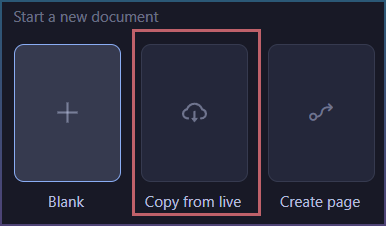
In SEO Workspace, add a page.

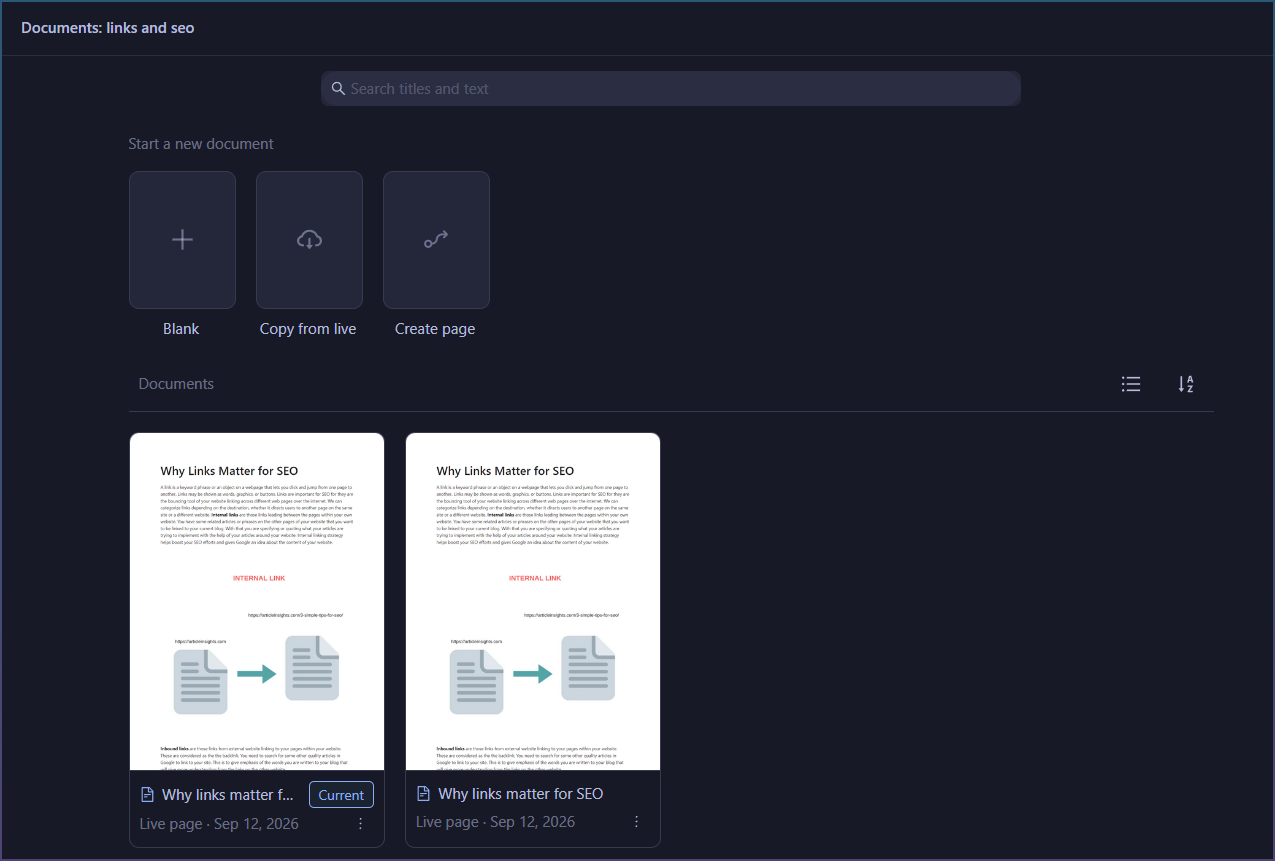
Click ‘Copy from live’.
You will need enter the page URL, if it is not there.
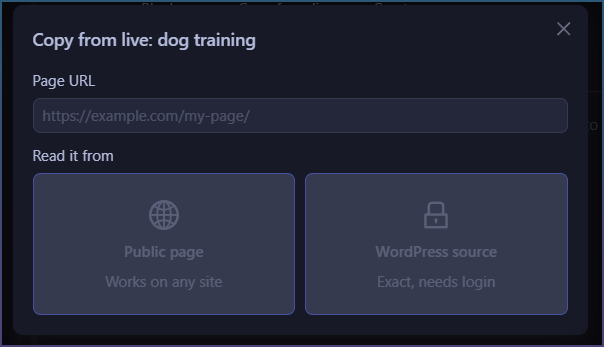
With a URL, the buttons can be clicked on.
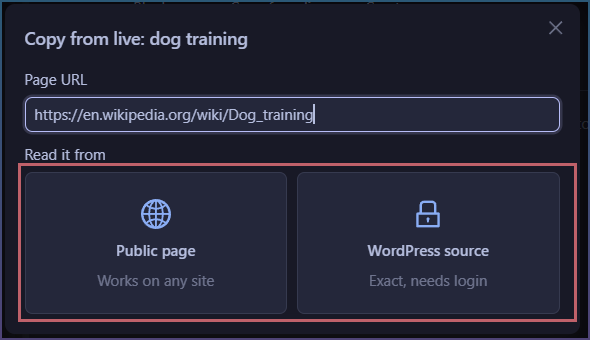
2 options. Download it from the web or fetch it from a WordPress site.
If it works you get this toast.

Now the article appears in the editor.
You can ask the Agent to review the content for you.
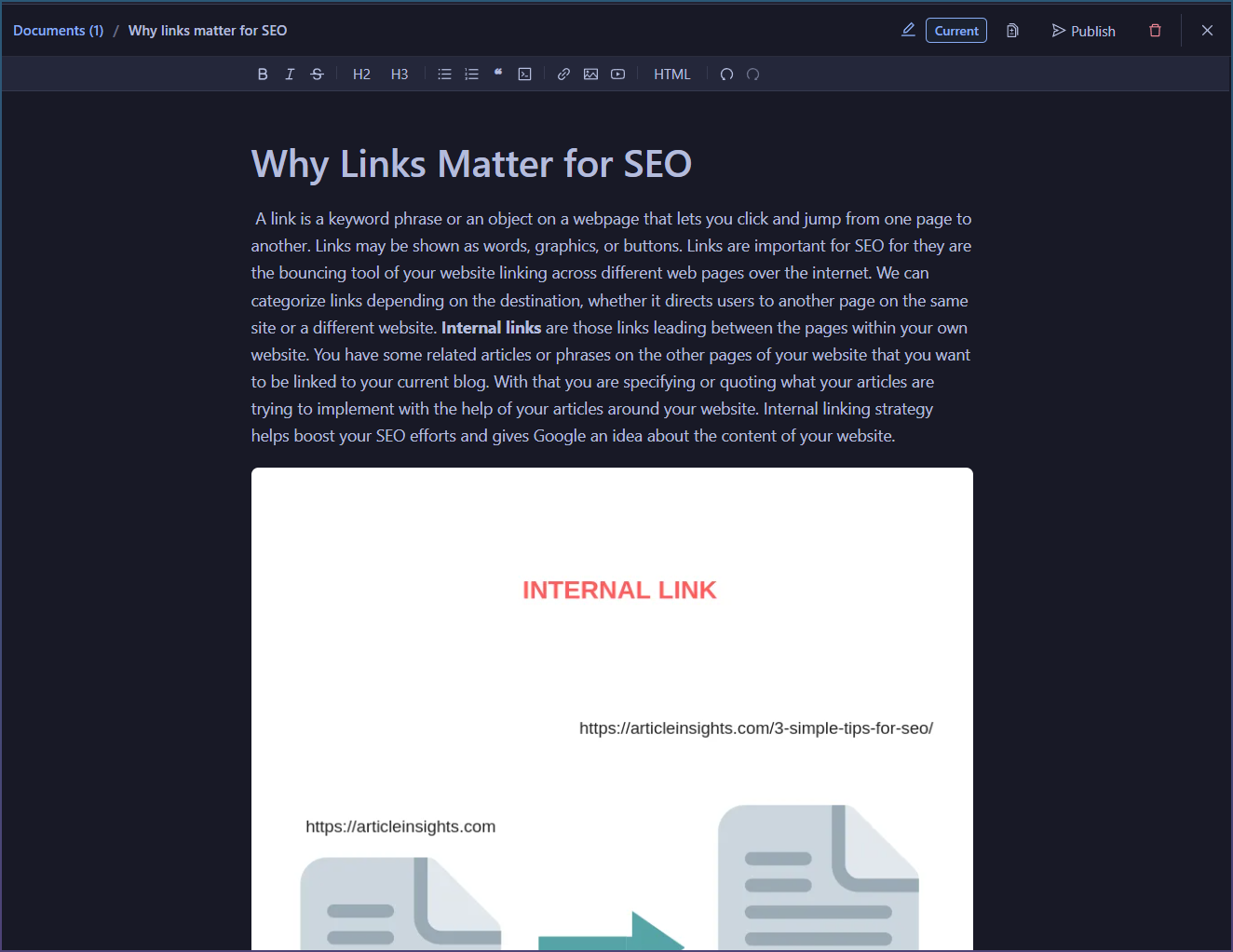
Multiple copies are in stored in the page documents.
Want to try this in SEO Content Machine? Start SEO Content Machine free trial
How to add your WordPress login
If you select WordPress source and didn’t add a WP login, the Blog manager will appear.
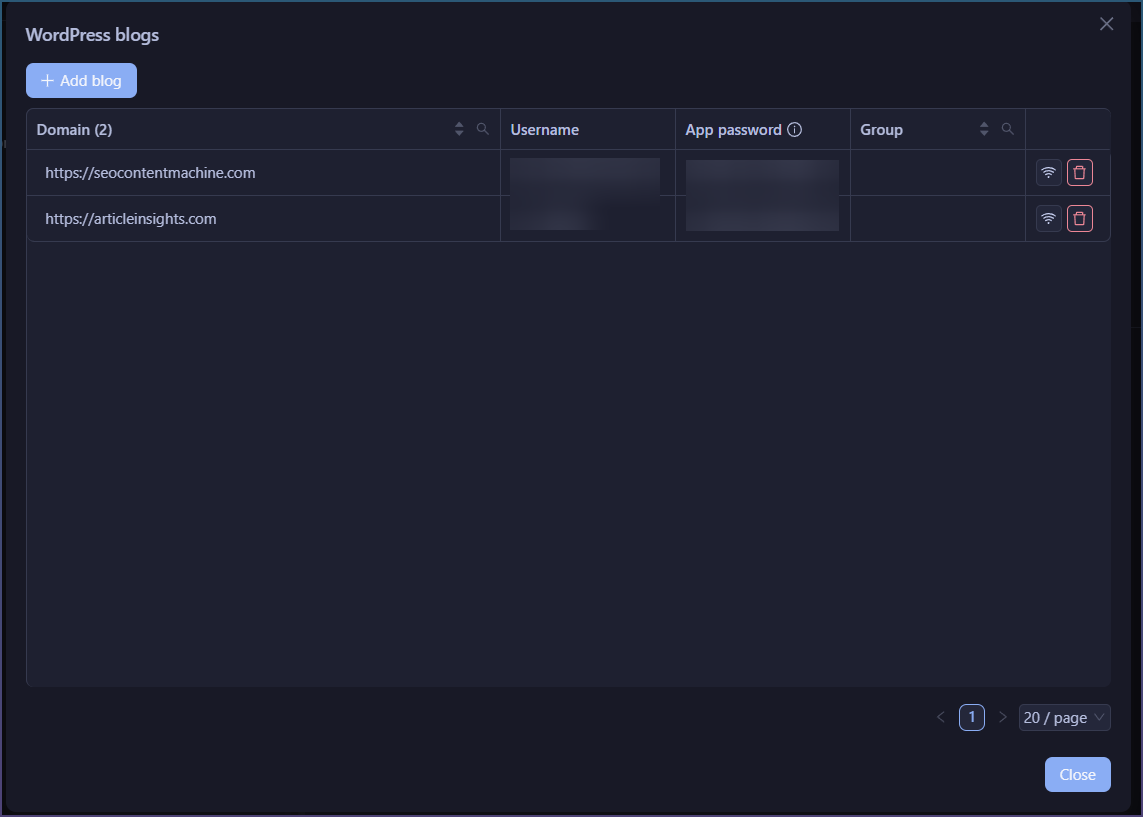
Click ‘Add blog’.
A new row appears.

Paste the site address, your username and the app password.
Click the test button to confirm its correct.

How to send it back
Very easy.
Click ‘Publish’.

Pick the blog. Post or Page, Publish or Draft.
If the post is already on the blog the button says ‘Update’.
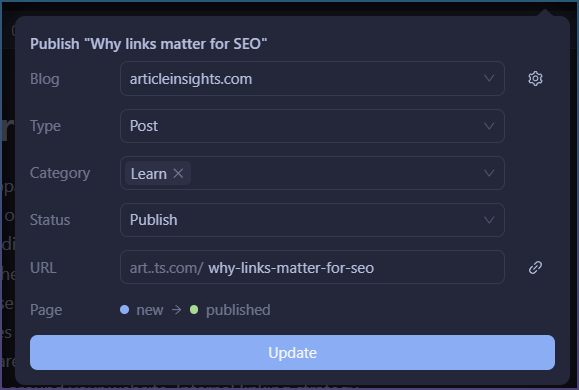
Click ‘Link’ to open the page.

How to do a batch publish
Tick the rows , then ‘Publish’ at the top of the table.
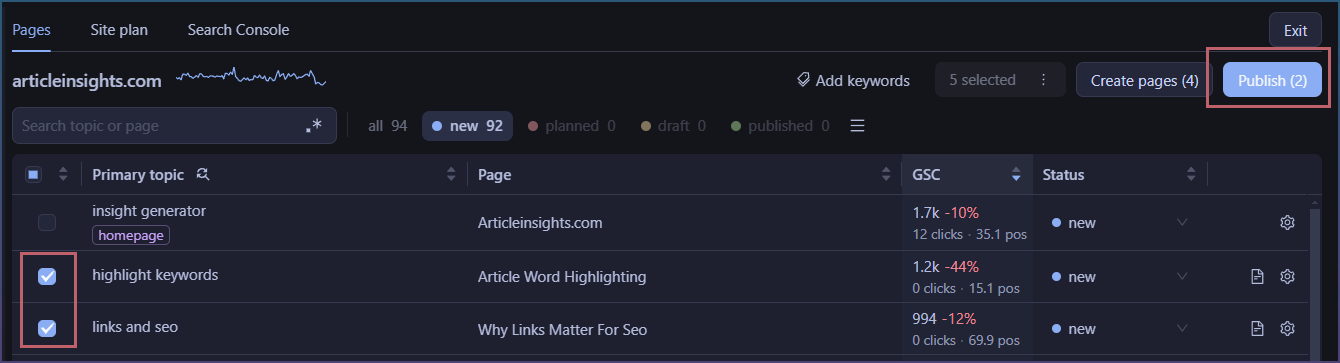
You can change posting details.
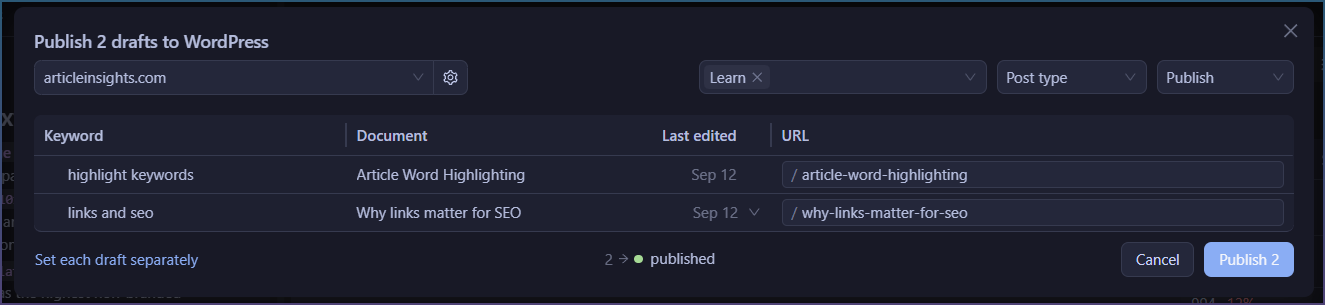
You can set category, page type (post/page)
Click Publish to confirm.