The Topic Cluster tool discovers, groups, and structures topics around a seed keyword — then assigns each cluster an AI template and sends it to the Page Pipeline for content generation.
The editor shows a three-step progress indicator at the top: Discover Topics → Review Clusters → Create Pages. This reflects where you are in the workflow and advances automatically as you run and select.

Create a Topic Cluster job
- Go to Topic Cluster in the sidebar and click New Job
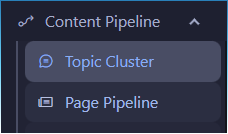
Each job stores its results independently. You can run the same seed keyword multiple times to expand an existing cluster set.
Enter a seed topic and run
-
Type a broad topic into the Seed topic field (e.g.
synthesizers,email marketing,keto diet)

-
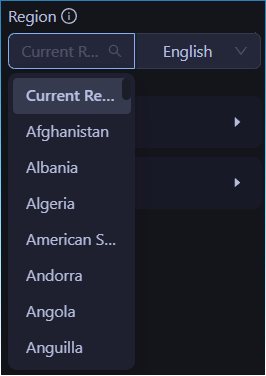
Set the Region selector to match your target market — this controls which Google autocomplete region and language is used for topic discovery
-
Press Enter or click the search icon to start discovery
-
A progress bar appears while the job runs

What happens during the run
The tool queries Google Suggest, Bing Suggest, and DuckDuckGo autocomplete for variations of your seed keyword. It also scrapes People Also Ask results and optionally Reddit threads. SERP headings from top-ranking pages are extracted and added to the topic pool.
Up to 500 topics are passed into the clustering step. Topics are embedded using OpenAI vectors and grouped by semantic similarity using HDBSCAN clustering. Each cluster is named after its most central topic and scored for cohesion. Clusters with only one topic are dropped automatically.
The 500 topic cap applies before clustering. For very broad seed keywords you may want to use Require words to focus the input and get tighter clusters.
Advanced options
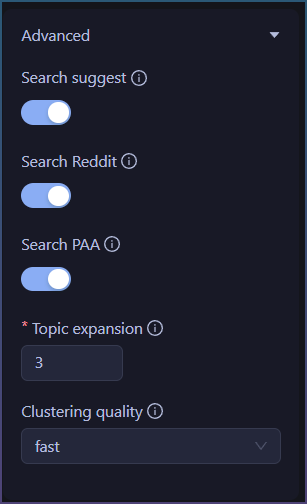
Expand the Advanced collapse panel to access discovery and clustering settings.
| Option | Description |
|---|---|
| Search suggest | Use SERP suggest (Google, Bing, DuckDuckGo autocomplete) as a topic source |
| Search Reddit | Pull Reddit thread titles as additional topic seeds |
| Search PAA | Scrape Google People Also Ask results for topic ideas |
| Topic expansion | Number of expansion steps that extract headings from search results. Higher values improve coverage; lower values are faster. Range: 0–10 |
| Clustering quality | Embedding dimension used for semantic clustering. Lower dimensions are faster but less accurate. Balanced is recommended for most SEO clustering tasks |
Disabling all three source toggles (Search suggest, Search Reddit, Search PAA) will significantly reduce the topic pool. Keep at least one enabled for best results.
Review clusters
Once the run completes, the results table appears. Each row is a suggested page derived from a cluster.
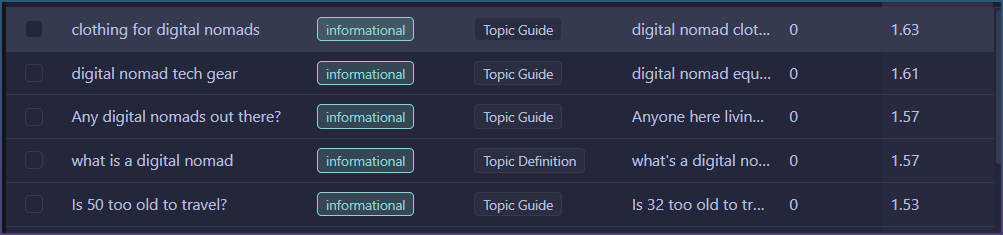
Clicking anywhere on a row toggles its selection — you don’t need to click the checkbox directly.
Table columns
| Column | Description |
|---|---|
| Primary Topic | The cluster centroid — the most representative topic in the group |
| Intent | Detected search intent: informational, commercial, transactional |
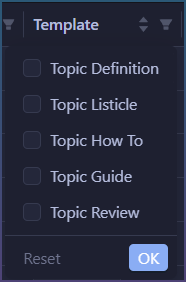
| Template | The AI prompt template auto-assigned to this page type (e.g. Topic Guide, Topic Review) |
| Supporting Topics | Related subtopics from the same cluster that will feed the page |
| Links | Number of internal links to other selected pages in the current selection (capped at 5) |
| Score | Relevance score (cohesion × cluster size). Higher = tighter, larger cluster |
Filtering and sorting
All columns support filtering. Use the Intent and Template filters to focus on a specific content type. Sort by Score descending (default) to prioritize the strongest clusters.
The Score column reflects cluster quality — a high score means the topics are semantically tight and the cluster is large. Prefer scores above 1.0 for page creation.
navigational intent topics are collected during discovery but no pages are ever created for them. If you see topics in your seed data that look navigational (brand names, login pages, etc.) and they don’t appear as rows, this is expected behaviour.
Select pages to create
-
Click any row to toggle selection, or use the Select all button to select everything visible

-
The selection count updates in the toolbar

-
Use Clear all to deselect
Topic filters (optional)
Expand Topic filters in the left panel to refine what gets clustered:
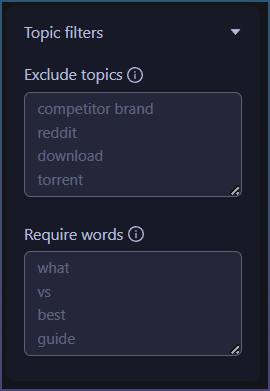
- Exclude topics — remove any topics containing specific words or phrases (one per line). Useful for brand names, navigational queries, or junk terms like
reddit,download - Require words — keep only topics that contain at least one of these words. Useful for focusing on question-style topics like
how,best,vs
Topic filters only apply on the next run. They do not retroactively filter existing results. Re-run the seed topic after updating filters.
Toolbar actions (when rows are selected)
- Copy — copies the selected cluster structure as indented plain text to clipboard. The format is: cluster name at the top level, primary topic indented below (if different from cluster name), then supporting topics indented further. Useful for pasting into notes, briefs, or AI prompts
- Delete — removes selected pages from the results permanently
- Create pages (N) — sends selected pages to the Page Pipeline

Create pages
- Select the pages you want to generate
- Click Create pages (N)
This creates a new Page Pipeline job pre-loaded with your selected topics. Each page is populated with:
primaryTopic— the cluster nameslug— auto-generated URL slug. Definition pages get no suffix (e.g.keto-diet). All other types get a suffix:-guide,-how-to,-review,-comparison,-listicle,-troubleshootingsupportingTopics— subtopics from the clusterintent— detected search intentpageType— detected content typetemplateType— assigned AI prompt templaterelatedPages— internal link targets from other selected clusters (up to 5 per page)
You will be redirected to the new Page Pipeline job automatically. The Topic Cluster job remains intact — you can return to it at any time to select more pages or re-run the seed topic.

Internal links are calculated from the selection — only slugs that exist in your current selection are wired as related pages. Select more pages to increase interlinking.
How templates are assigned
Each cluster is automatically assigned a content template based on the detected intent and topic signals:
| Template | Page type | Typical trigger |
|---|---|---|
| Topic Definition | definition |
“what is”, “meaning”, “explained” |
| Topic How To | how_to |
“how to”, “tutorial”, “step by step” |
| Topic Guide | guide |
“guide”, “beginner”, “getting started” |
| Topic Troubleshoot | troubleshooting |
“fix”, “not working”, “error” |
| Topic Comparison | comparison |
“vs”, “compare”, “which is better” |
| Topic Listicle | listicle |
“best”, “top”, “alternatives” |
| Topic Review | review |
“review”, “worth it”, “pros and cons” |
Clusters with low cohesion and high connectivity (3+ related clusters) are promoted to pillar tier and always assigned the guide template regardless of topic signals.
Re-running to expand results
You can run the seed topic again at any time. New clusters are merged with existing results — duplicate pages (matched by primary topic + intent) are deduplicated and their supporting topics are merged.
Running again does not delete your current selection. Previously selected pages remain selected after a merge.
Troubleshooting
No rows appear after the run
Results are stored in keyword-results.txt inside the job data folder. If the file is missing or malformed the table will be empty. Try re-running the seed topic.
Fewer clusters than expected
Clusters with only one topic are dropped. Very broad seed keywords produce more noise and fewer tight clusters. Try adding Require words to focus the topic pool, or use a more specific seed.
A topic I expected is missing from the results
Check your Exclude topics list — it may be matching unintentionally. Also note that topics shorter than 2 words or longer than 10 words are filtered out before clustering.