Turn Google Search Console (GSC) data into published page updates in SEO Content Machine. Import your site, and the agent finds the pages worth improving.
Why use this?
- Search Console gives you numbers. It does not tell you which page to work on next.
- The agent reads the import and finds pages that rank well but get few clicks. Those are the cheapest pages to improve.
- The data, the shortlist, the draft and the publish step all sit in 1 workspace.
- Every import is kept in ‘History’, and you can undo one.
Requires a site with Google Search Console access and a WordPress site to publish to.
Notes
- This workflow is for a live site that already gets impressions in Google.
- It is also a good first tour of the SEO Workspace, because it touches every tab.
- SCM updates the existing WordPress post when you publish. It does not add a copy.
Import your Search Console data
- Click ‘New SEO Workspace’.
- For a live site, choose ‘Search wins’. It uses Google data to find pages worth improving.
- Pick a site, then click ‘Get data’.
Every page comes in with the searches it shows for and the clicks it gets.
Ask the agent what to work on
The agent sits in the left panel and the page data stays on the right.
- Click ‘Review results with AI’. The agent reads the import and looks for pages that rank well but get few clicks.
- Ask the agent to mark 2 pages for a refresh.
- Read the chat. It says which pages it picked and why.
This only makes a shortlist. No draft starts until you say so.
Write the update
- Open the ‘Pages’ tab and filter by ‘refreshing’.
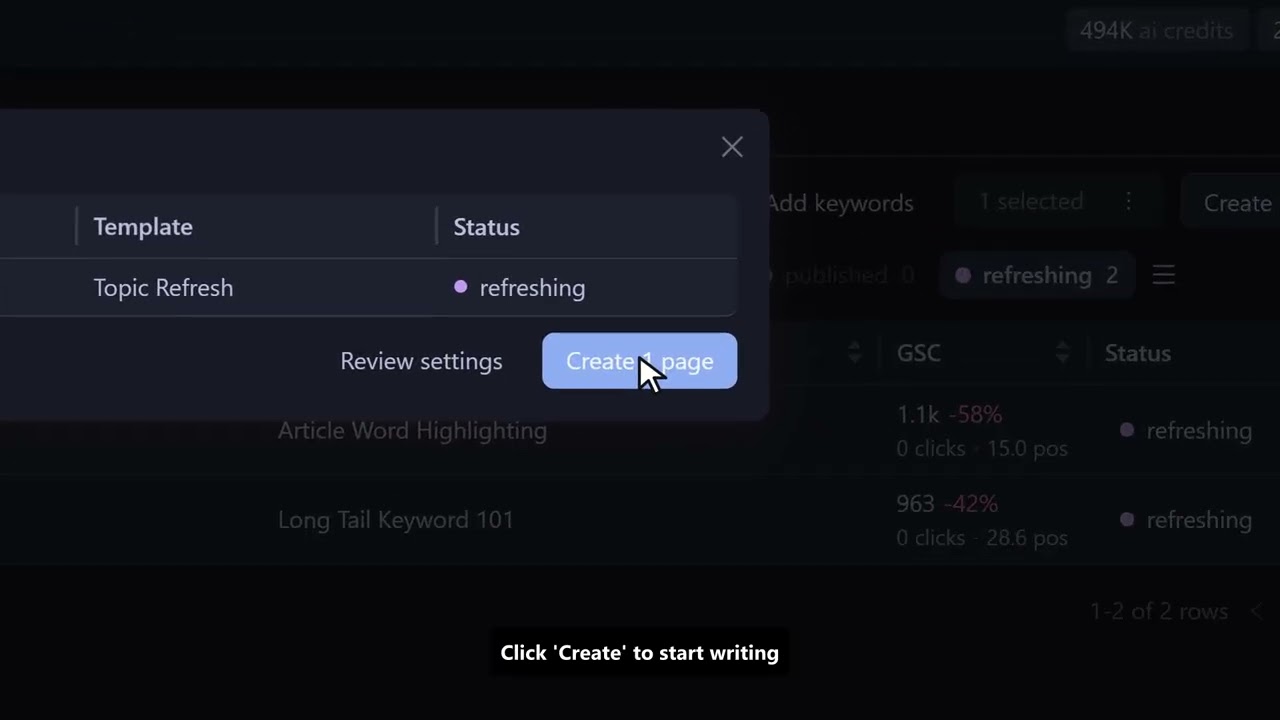
- Select a page and click ‘Create pages’.
- Open ‘Review settings’ if you want to see what goes to the AI.
- Click ‘Create’.
The agent has already chosen the ‘Topic Refresh’ template for this page. That template reads the live page to see what is already there, and it checks the top search results before it writes.
Try the Search wins workflow in the free 14-day trial
Look around while it writes
SCM drafts in the background, so this is a good time to see the other tabs.
- The ‘Brief’ tab describes the business the agent plans for.
- ‘Instructions’ set the tone, the spelling and the words to avoid. SCM applies them to every draft.
- The ‘Search Console’ tab keeps the import itself, query by query.
- ‘History’ lists every import that changed the pages. Click an entry to see the pages that came from it.
If an import was a mistake, click the bin icon in ‘History’ and confirm. SCM restores the page data from before that import.
Put the pages in the site plan
- Select the 2 pages and choose ‘Add to site plan’.
- Open the ‘Site plan’ tab. It shows those pages as a tree.
- Drag a page under another to show which one supports it.
Review it and publish to WordPress
- Back on ‘Pages’, filter by ‘refresh draft’.
- Click the page icon to read the rewrite.
- Edit the draft and check the wording.
- Click ‘Publish’ and pick the WordPress blog.
The post is already on that blog, so SCM updates it. The row moves to ‘refreshed’.
FAQ
Which pages does the agent pick?
Pages that rank well but get few clicks. Those are the cheapest pages to improve.
Will SCM create a duplicate post on my blog?
No. If the post is already on the blog, SCM updates it.
Can I undo a Search Console import?
Yes. Click the bin icon next to the import in ‘History’ and confirm. SCM restores the page data from before it.
Does SCM publish the update on its own?
No. SCM publishes to WordPress only when you click ‘Publish’.
Does an update guarantee a better ranking?
No. SCM does not guarantee rankings. Check the page in Search Console a few weeks after you publish.
What does it cost to try?
The trial is free for 14 days and includes 100,000 AI credits. Prices are in What is SEO Content Machine (SCM) and what does it cost.