Plan a local SEO page for every service and town in SEO Content Machine. Enter your services and locations, and SCM builds the page plan as a tree.
Why use this?
- A local business with 4 services and 10 towns needs 40 town pages plus 4 service pages. You lose hours if you plan that by hand.
- You see every page idea in a preview before anything is added to the workspace.
- Each town page sits under its service page, so the internal links are planned for you.
- You write and publish 1 page first, check it, then do the rest.
Requires a WordPress site to publish to.
Notes
- This workflow is for a business that serves customers in named places eg a vet, a plumber or a dentist.
- SCM plans the pages and writes the drafts. You decide which pages get written and you click ‘Publish’ on each one.
- The example in the video is a vet clinic in Melbourne.
Set up the workspace
A workspace is 1 site, so start by making one for the business.
- On the SEO Workspace screen click ‘New SEO Workspace’.
- Choose ‘Local SEO’.
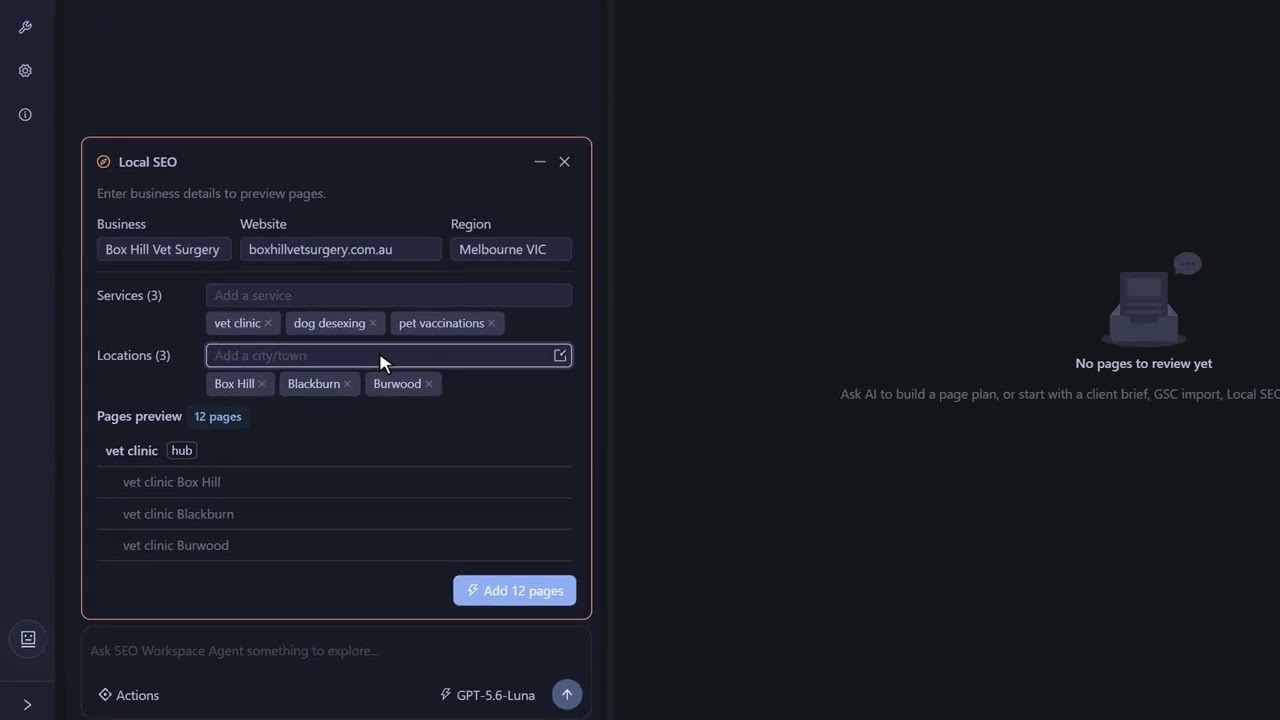
- Enter the business name, the website and the region.
The region matters because it sets which area SCM researches.
Add your services and towns
- Type each service and press Enter.
- Type each city or town you serve and press Enter.
- If the list of towns is long, click the ‘Import CSV’ icon inside the location field and load them from a file.
- Read the preview. It shows every page idea before anything goes into the workspace, so this is the place to catch a wrong service or a missing town.
- Click the add pages button. The chat confirms how many page ideas went in.
In the preview a ‘Hub’ is the main page for 1 service. SCM groups the town pages under it.
Check the site plan
Open the ‘Site plan’ tab to see the same pages as a tree. Each service is a branch with its town pages under it, and each town page links back to its hub service page. This is the structure the finished site will have.
Try the Local SEO workflow in the free 14-day trial
Write 1 page first
- Go back to the ‘Pages’ tab and select 1 area page.
- Click ‘Create page’. SCM has already picked the ‘Local SEO Service’ template, which tells the AI how to write a service page for 1 area.
- Open ‘Review settings’ if you want to see exactly what goes to the AI.
- Click create.
SCM writes in the background, so you can keep working in the workspace. The page status changes to ‘draft’ when the draft is finished.
Review it and publish to WordPress
- Click the ‘draft’ filter to find the pages that are ready.
- Click the page icon to open the draft. It covers 1 service in 1 area.
- Check the business details and edit the wording right there.
- Click ‘Publish’ and pick a WordPress blog.
- Set ‘Status’ to ‘Publish’ if the page should go public straight away, then click ‘Publish’ to send it.
Once the first page looks right on the site, come back and create the rest of the branch.
FAQ
Does SCM publish the pages on its own?
No. SCM publishes a page to WordPress only when you click ‘Publish’.
Can I import my towns from a file?
Yes. Click the ‘Import CSV’ icon inside the location field.
Does SCM connect to Google Business Profile?
No. SCM plans, writes and publishes the service and town pages on your WordPress site.
Which sites can I publish to?
WordPress. SCM does not publish to Webflow, Shopify or Ghost.
Which AI writes the drafts?
You choose. Use SCM AI credits, your own AI keys or a local model.
What does it cost to try?
The trial is free for 14 days and includes 100,000 AI credits. Prices are in What is SEO Content Machine (SCM) and what does it cost.