Problem: Manual Keyword Combination is Time-Consuming and Error-Prone
Content creators and SEO specialists often need to generate extensive lists of keyword variations for comprehensive search engine optimization. Manually combining base keywords with multiple modifiers (locations, product types, descriptors) becomes exponentially complex and time-consuming. For example:
- Combining 5 base keywords × 10 locations × 5 product types = 250 unique combinations
- Manual creation leads to missed combinations, inconsistent formatting, and wasted hours
- Large-scale keyword research becomes impractical without automation tools
Solution: Automated Keyword Combination with Template-Based Generation
The Keyword Combiner tool provides an efficient, automated solution for generating all possible keyword combinations through a simple template-based interface.
Detailed Instructions for Using the Keyword Combiner Tool
1. Access the Tool
- Open your SCM application
- Navigate to the Keyword Combiner section in the UI
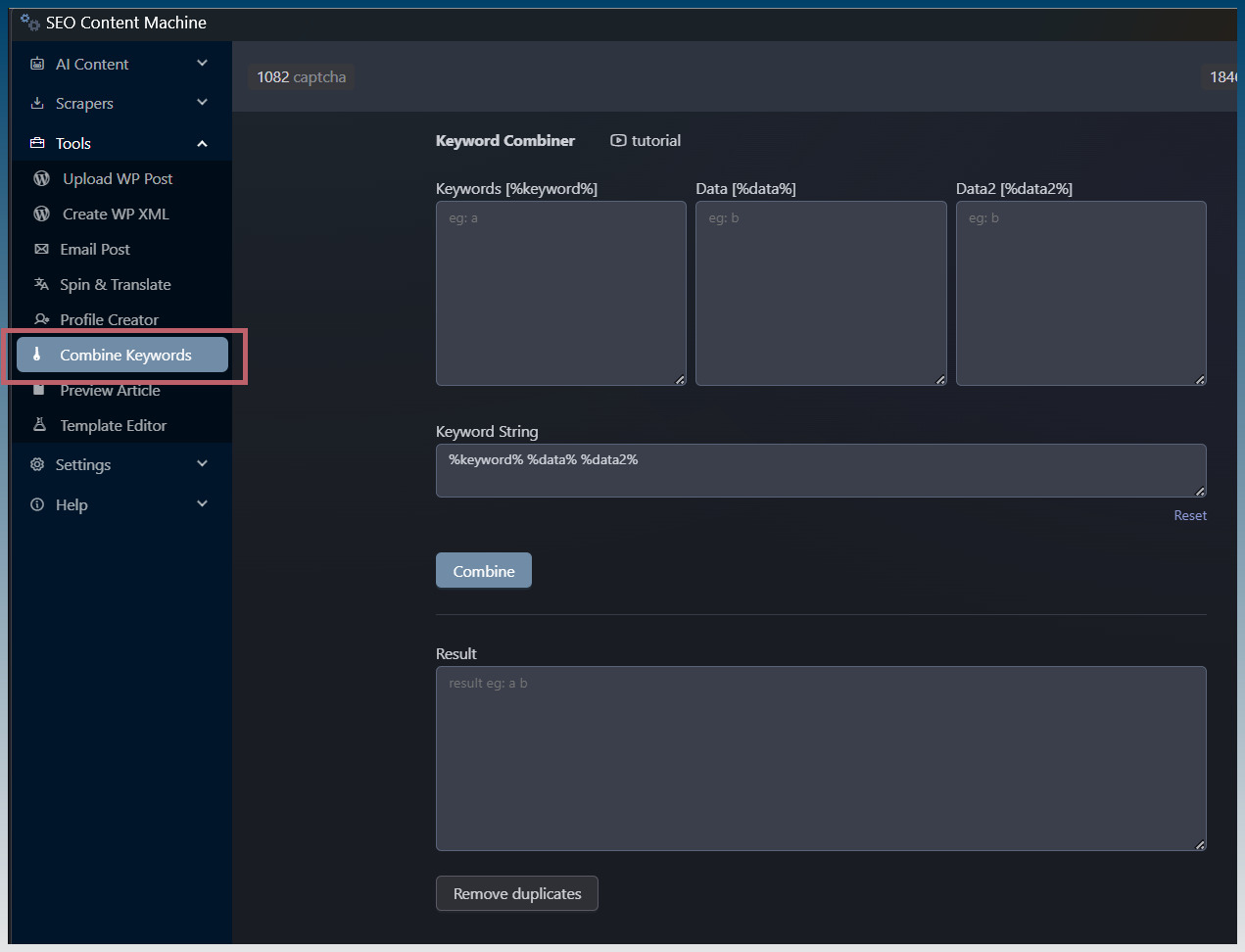
- The interface displays three input textareas (Keywords, Data, Data2), a template field, and result area
2. Prepare Input Data
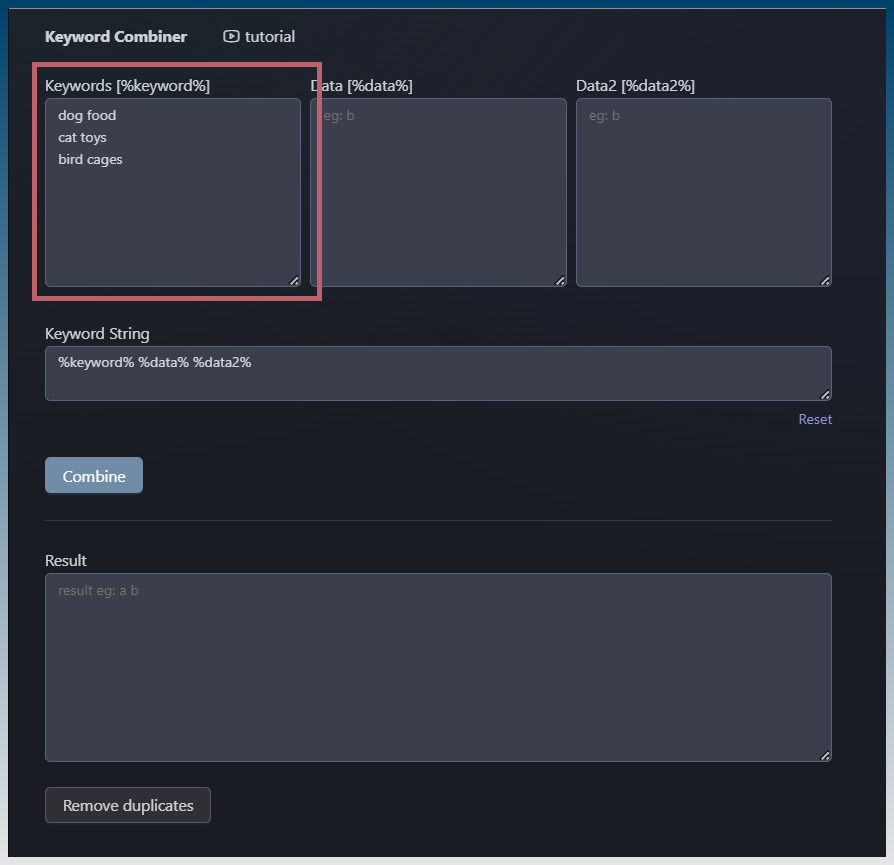
Keywords Field [%keyword%]:
- Enter your base keywords, one per line
- Example input:
dog food
cat toys
bird cages
Data Field [%data%]:
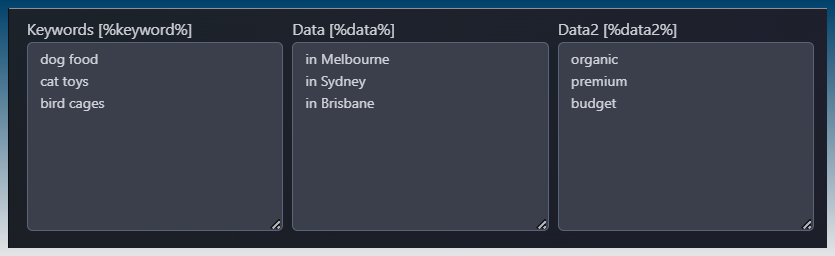
- Enter primary modifiers/variations, one per line
- Example input:
in Melbourne
in Sydney
in Brisbane
Data2 Field [%data2%] (Optional):
- Enter secondary modifiers if needed, one per line
- Leave empty if only two-variable combinations are required
- Example input:
organic
premium
budget
3. Configure the Keyword String Template
-
Edit the Keyword String field to define output format
-
Use placeholders:
%keyword%,%data%,%data2% -
Default value:
%keyword% %data% %data2% -
Click “Reset” link to restore default template
-
Alternative templates:
%keyword% %data%(two-variable combinations)Best %keyword% %data% %data2%(with descriptive prefix)%data% %keyword% %data2%(reordered combination)

4. Generate Keyword Combinations
- Click the blue “Combine” button
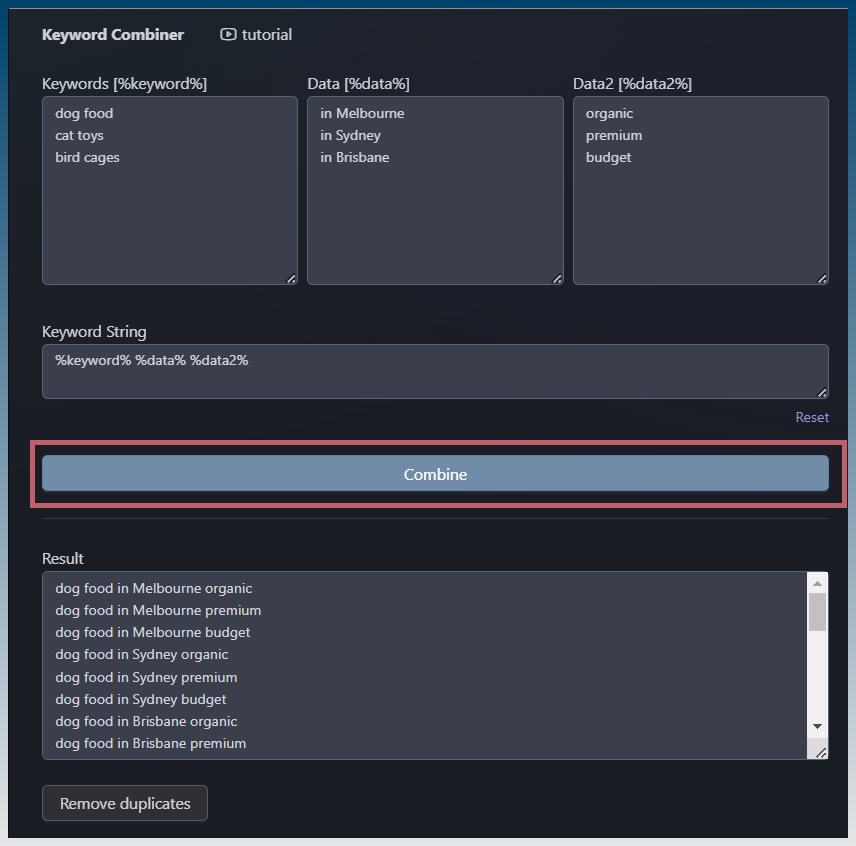
- Tool processes all combinations automatically
- Results appear in the Result textarea
- Processing logic: For each keyword × each data × each data2 (if provided)
5. Process and Export Results
- Review generated combinations in Result field
- Click “Remove duplicates” button to eliminate any duplicate entries
- Copy results using standard text selection (Ctrl+A, Ctrl+C)
- Paste into spreadsheets, keyword tools, or content planning documents
6. Advanced Usage Tips
- Large Datasets: Break into smaller batches if performance issues occur
- Line Breaks: Ensure each entry is on a separate line in input fields
- Case Sensitivity: Placeholders are case-insensitive (%KEYWORD% works same as %keyword%)
- Empty Fields: Data2 can be left empty for simpler combinations
Example Workflow:
Input Scenario:
- Keywords: 3 items (dog food, cat toys, bird cages)
- Data: 3 items (Melbourne, Sydney, Brisbane)
- Data2: 3 items (organic, premium, budget)
- Template:
%keyword% %data% %data2%
Output:
dog food in Melbourne organic
dog food in Melbourne premium
dog food in Melbourne budget
cat toys in Sydney premium
... (all permutations)
This solution transforms a tedious manual process into a quick, reliable automated workflow, enabling content teams to focus on strategy rather than repetitive data entry.