Use Page Pipeline → Content inserts → Links.
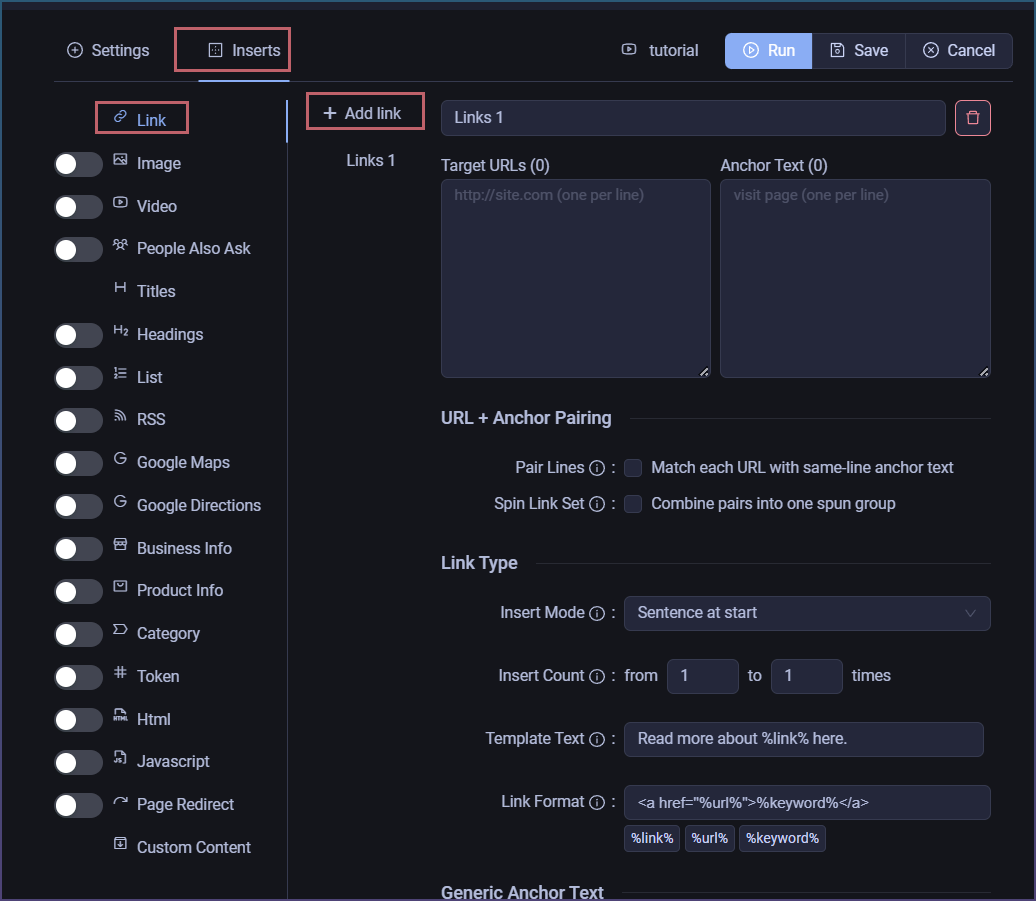
Option 1: Fixed Position (Sentence or Paragraph at Start)
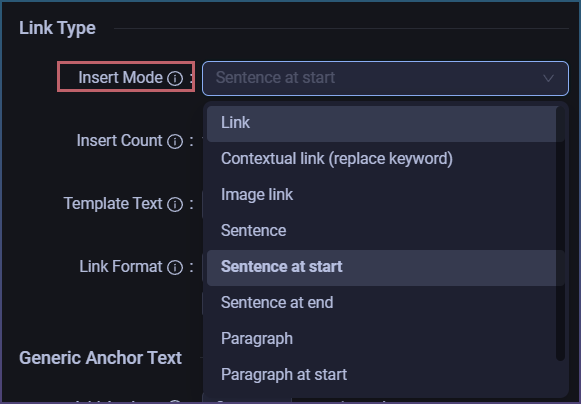
Set Insert Mode to one of:
- Sentence at start — link sentence spliced into the first paragraph
- Paragraph at start — link as its own block before the article body
In Template Text, use %link% as the placeholder. For a bare link:
%link%
For a full sentence:
Read more about %link% here.
Add/edit link set, then set Insert mode:
- Sentence at start = link sentence goes at start of first paragraph
- Paragraph at start = link paragraph goes before article body
Use Template text with %link%, e.g. Read more about %link% here.

If you use normal Link or Contextual link modes, SCM places links inside the article automatically, so their exact position can vary. For links in the opening text, use one of the “at start” modes.
Option 2: Contextual Link Targeting the First Paragraph
Set Insert Mode to Contextual link and set Paragraph Positions to 1.
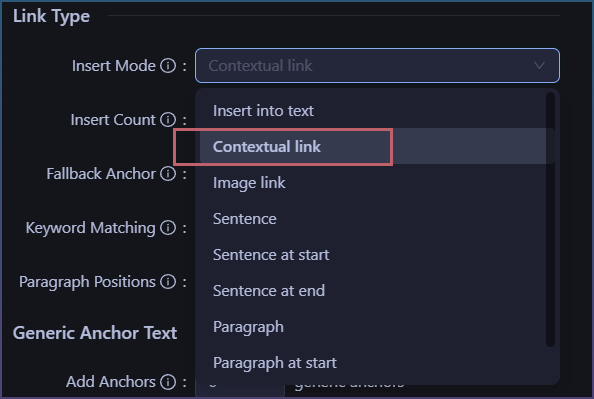

SCM looks for a keyword match in paragraph 1. If found, it wraps the keyword with the link. If not, it grabs a random word group from that same paragraph — set Fallback Anchor to control word length (e.g. 2–3 words).

If you’re inserting more than one contextual link, the first link uses your preferred paragraph. Extras go to random paragraphs.
FAQ
Do I need extra text around %link%?
No. You can use only:
%link%

Then SCM will insert just the generated link.
Example output:
<a href="https://example.com">anchor text</a>
Use extra text only if you want a full sentence, for example:
Read more about %link% here.
Can links work like Custom content positions?
Links have their own placement options. For links near the top, use:
- Sentence at start: adds
%link%at the start of the first paragraph - Paragraph at start: adds
%link%as its own paragraph before the article body
So for a plain link at the beginning, set Insert mode to Sentence at start or Paragraph at start, and set Template text to %link%.