The Problem
- Generating content for large datasets requires manual AI prompting for each item.
- Enriching CSV data with AI generated columns is time consuming and error prone.
- Scaling content creation from spreadsheets involves repetitive API calls and data management.
Solution
The AI CSV tool automates bulk content generation by using CSV rows as variables in AI prompts.
Benefits
- Processes entire CSV files with AI generated columns in batch operations.
- Uses existing CSV data as contextual variables (%column%) in AI prompts.
- Supports multiple output formats: enhanced CSV, Google Sheets, or individual files.
Usage Instructions
Step 1: Access the Tool
- Launch the SCM application.
- Navigate to the AI CSV section.
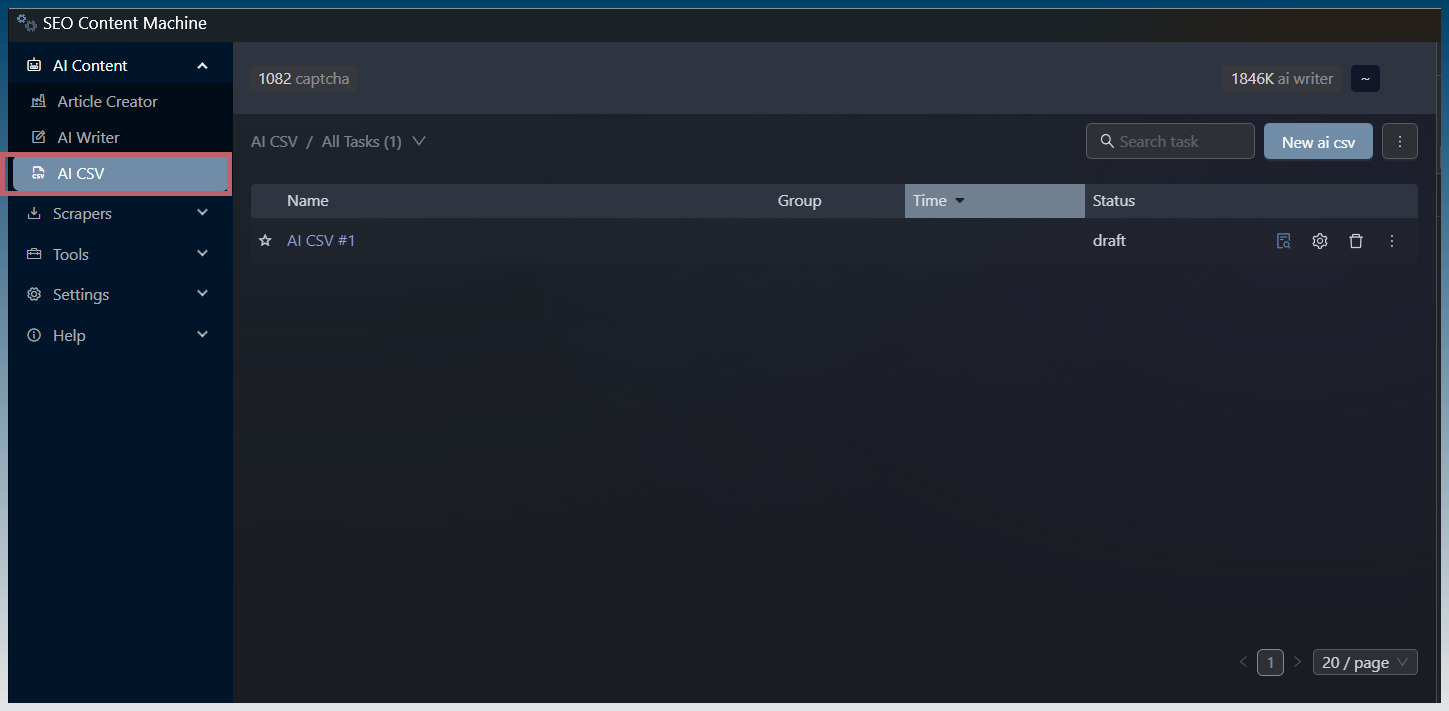
Step 2: Configure CSV Input
- Select CSV file using the file browser.
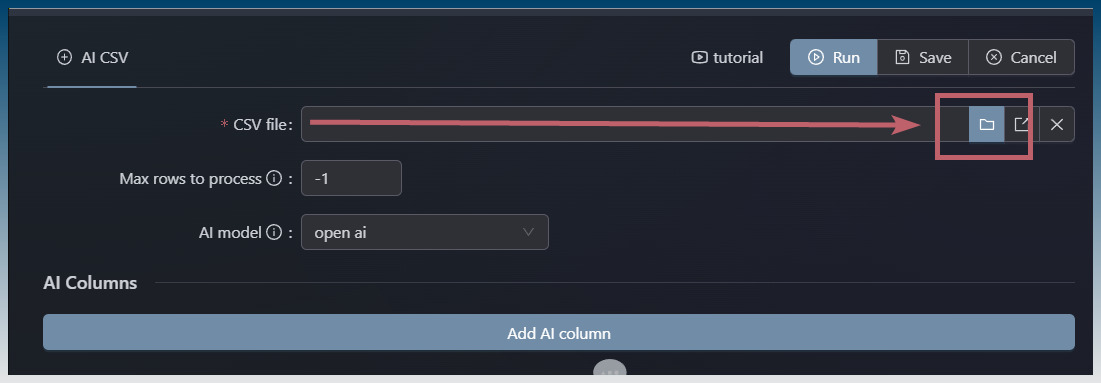
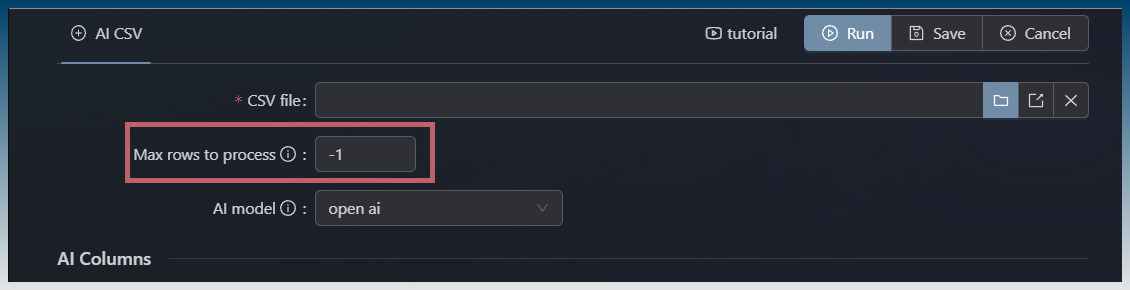
- Set max rows to process (optional limit).
- -1 for unlimited rows.
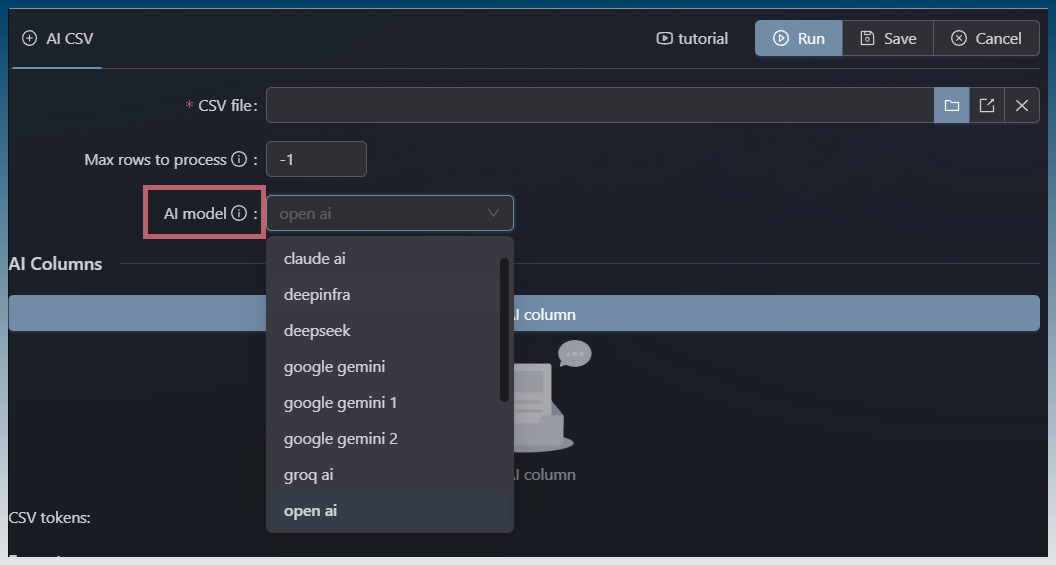
Step 3: Select AI Model
- Choose AI service and model for content generation.
Step 4: Add AI Columns
- Click “Add AI column” to create new columns.
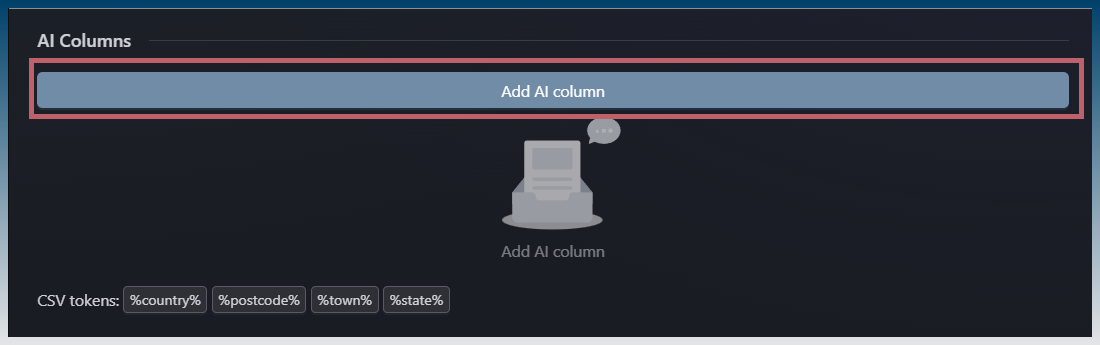
- Enter column name and AI prompt using %tokens% from CSV headers.
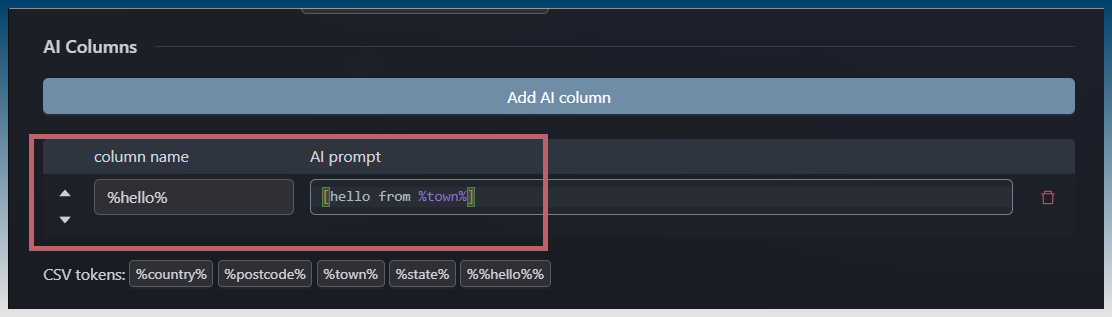
- Reorder columns using up/down arrows if needed.

Step 5: Set Output Options
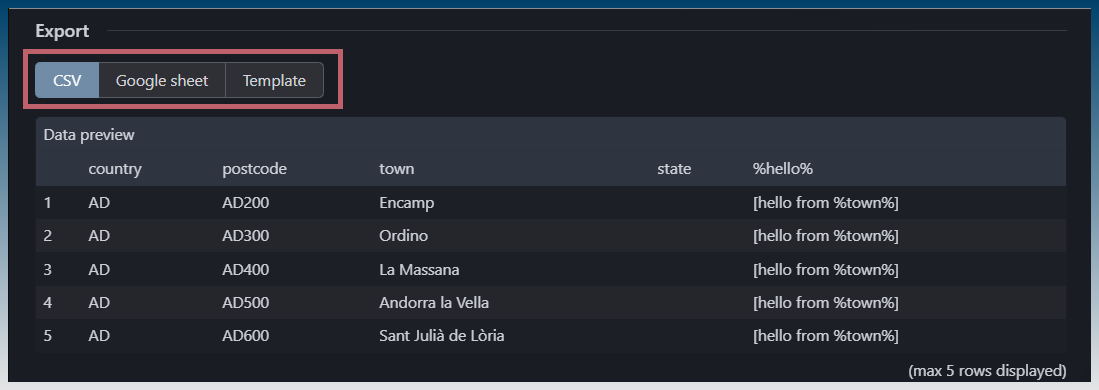
- Choose export format: CSV file, Google Sheet, or template-based files.
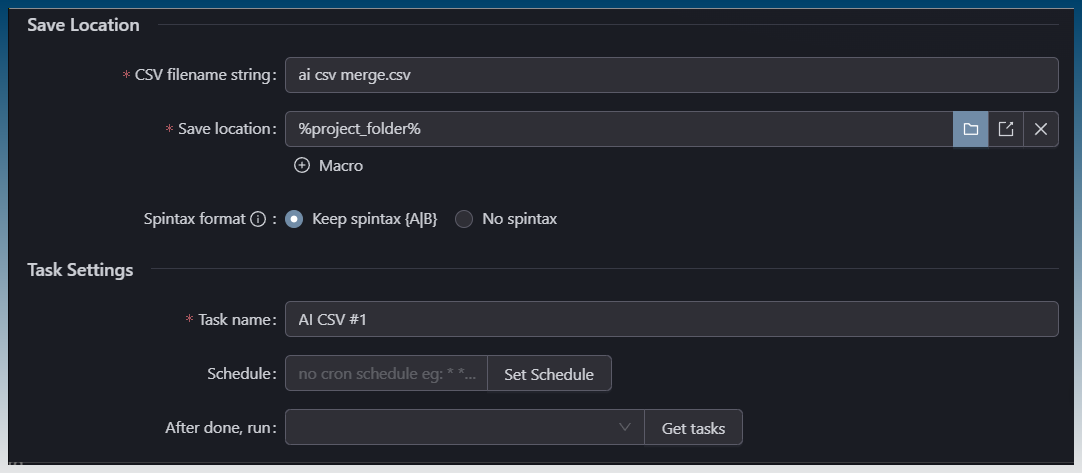
- Configure task name and scheduling if needed.
Step 6: Run Task
- Execute the task to generate AI-enhanced content.
- Monitor progress and review output files.
Tips
- Use %columnname% tokens in prompts to reference CSV data.
- Preview available tokens before running.
- Schedule recurring tasks for ongoing content generation.
Examples
Example 1: Product Descriptions
- CSV columns: ProductName, Category, Price
- AI Column: “Description” with prompt “Write a compelling product description for %ProductName% in the %Category% category priced at %Price%”
